![hdr_logo.png]](https://go.ninesliving.com/hs-fs/hubfs/j1640189779864/hdr_logo.png?height=40&name=hdr_logo.png)
Note that the below instructions apply only to users with the permission to create, update, and/or delete a Property.
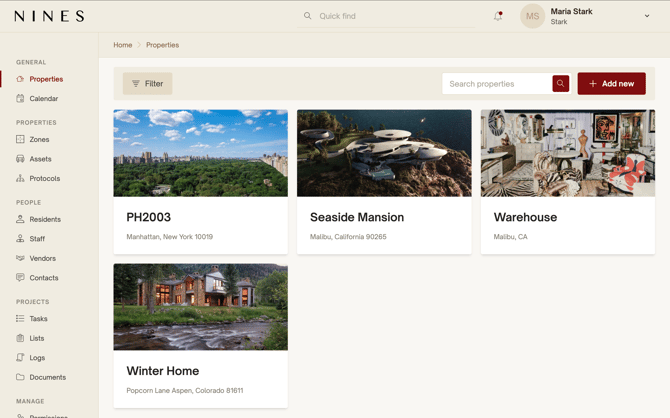
You can add a new Property using the red '+ Add new' button on the Properties page. Only the Property Name is a required field.
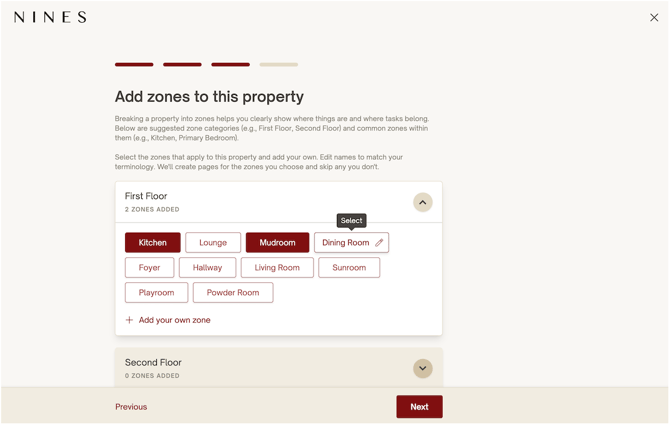
Plus, with our new property onboarding flow, in the next steps you can:
- Add zones, assets, residents and staff members to a property in bulk — automatically building out pages for each new item
- Add zones based on common suggestions, rather than starting from scratch
- Select assets from smart suggestions based on each zone
Soon, you’ll see similar workflows for adding zones and assets to existing properties. After that, you’ll start to see AI-powered suggestions for tasks and lists based on your assets, followed by AI-powered data extraction from documents and spreadsheets.
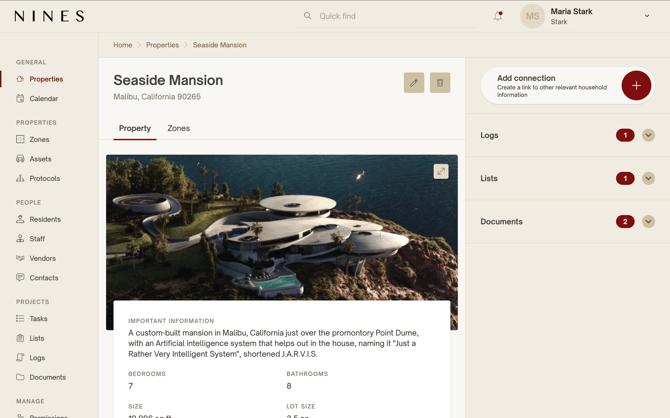
Moving forward, you can edit and delete a Property on its Property page using the pencil and trash icons on the top right next to the Property name, respectively. Note that deleting a Property will permanently delete the page and any information as well as all Zones. It will not delete anything you've connected to that Property (like Logs or Documents), and you can still find them under the corresponding section in the lefthand pane or via the search bar.