![hdr_logo.png]](https://go.ninesliving.com/hs-fs/hubfs/j1640189779864/hdr_logo.png?height=40&name=hdr_logo.png)
Note that the below instructions apply only to users with the permission to view, create, update, and/or delete Lists.
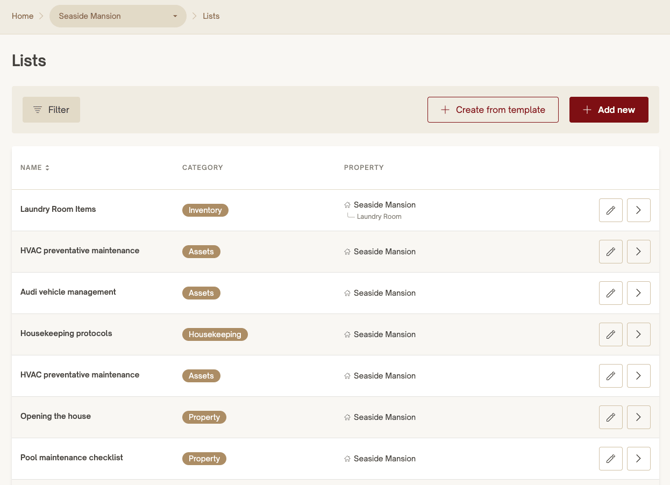
You can add a new List using the red '+ Add new' button on the Lists page. Only the Name, Category and Property are required fields. (reminder that Categories on Lists can be customized if you want to categorize them in a different way). Or start with a Nines provided List Template by using the '+ Create from template' button on the Lists page.
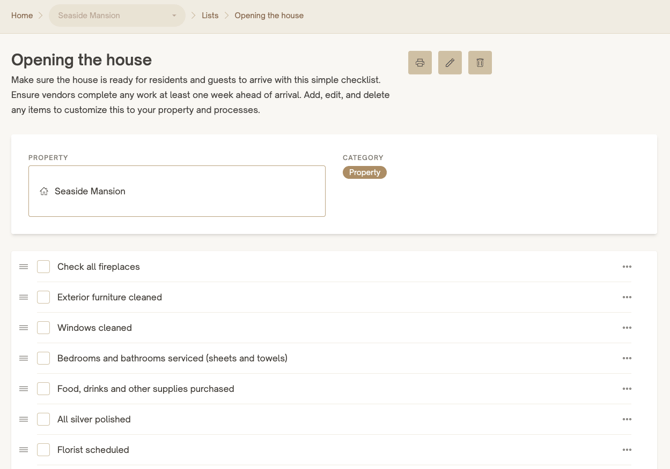
You can edit and delete a List on its List page using the pencil and trash icons on the top right next to the List name, respectively. Note that deleting a List will permanently delete the page and any information.
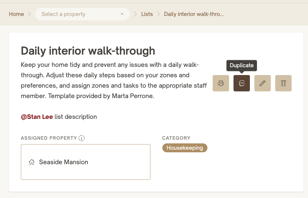
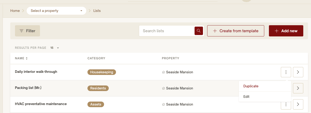
Lastly, you can duplicate a List to create a copy. To do this, click the options menu on the Lists overview page or the duplicate icon on the detail page. Edit your duplicate as much as you need to, and get a jump start on your next list! Note that any connections and attachments you've added to a list will also be duplicated, but they may take a minute to display.
Once your list is created, you can convert individual list items into actionable tasks. This is useful when an item requires scheduling, assignment, due dates, reminders, or more detailed tracking. Converting a list item into a task helps teams operationalize checklists and ensures important work is properly managed and followed through within Nines.
In addition to converting individual items, you can also convert an entire list into a task. This is helpful when a complete checklist or workflow needs to be assigned, scheduled, and tracked as a single actionable item. The task will retain the associated list, allowing staff to work through and complete each checklist item directly within the task while maintaining visibility into overall progress and accountability.
To save time when building larger lists, Nines also supports adding list items in bulk. Instead of creating items one at a time, simply copy and paste multiple entries into the bulk add window, with each line becoming a separate list item automatically. This is especially helpful for inventories, maintenance checklists, onboarding procedures, provisioning lists, and recurring operational workflows.