![hdr_logo.png]](https://go.ninesliving.com/hs-fs/hubfs/j1640189779864/hdr_logo.png?height=40&name=hdr_logo.png)
You can customize the columns on overview pages in Nines to display the information most relevant to you. Choose which columns to show or hide, adjust their width, and rearrange their order to create a view that works best for you.
How do I customize columns?
- Navigate to an overview page, such as Assets, Tasks, Projects, or Vendors.
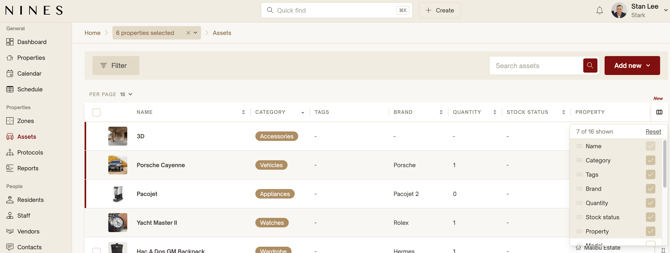
- Click the Columns icon (three vertical bars) in the top-right corner of the table header.
- A dropdown will appear with the available columns for that section.
- Customize your view using the following options:
- Show or hide columns: Check or uncheck the box next to a column name to display or hide it.
- Reorder columns: Click and drag the handle (three horizontal lines) next to a column name to change its position in the table.
- Resize columns: Drag the edge of a column header left or right to adjust its width.
- To return to the default column configuration, click Reset at the top of the dropdown.
The dropdown also shows how many columns are currently visible out of the total available, such as 7 of 16 shown.
What can I customize?
Available columns vary depending on the overview page. For example, on the Assets overview, you can choose to display information such as Category, Tags, Brand, Quantity, Stock Status, Property, and more. Name will always show first as default.
This allows you to prioritize the information you use most frequently without opening each individual item.
Coming soon
We're working on additional functionality to make overview pages even more useful, including:
- Column sorting: Sort information directly from column headers.
- Inline editing: Edit information directly from overview pages without opening individual items.
Tip: Hide columns you rarely use and move your most important columns to the beginning of the table for a cleaner, more efficient overview.