![hdr_logo.png]](https://go.ninesliving.com/hs-fs/hubfs/j1640189779864/hdr_logo.png?height=40&name=hdr_logo.png)
For inventory items, Nines lets you track how many you have on hand, receive notifications when stock is running low, and quickly identify items that need to be replenished.
Update an asset's quantity
You can update an asset's quantity in either of two ways:

From the Assets overview
- Navigate to Assets.
- Locate the inventory item.
- Edit the Quantity directly in the list.
- The change is saved automatically.
This is the quickest way to adjust stock levels after items are used or replenished.
From the asset details
- Open the asset.
- Select Edit.
- Update the Quantity field.
- Save your changes.
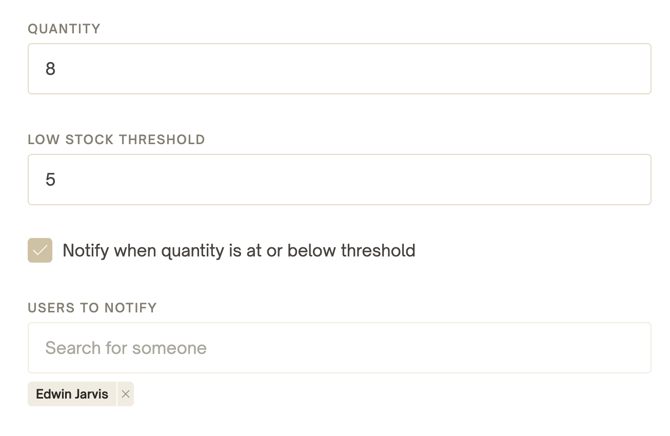
Configure a Low Stock Threshold
If you want Nines to alert you before an item runs out:
- Open the asset and select Edit.
- Enter a Low Stock Threshold.
- This is the minimum quantity you want to keep available.
- (Optional) Enable Notify when quantity is at or below threshold.
- (Optional) Select one or more Users to Notify.
- Save the asset.
Note: Setting a Low Stock Threshold is optional. For many assets, such as vehicles, artwork, or furniture, a threshold may not be applicable.
Likewise, assigning users to receive notifications is optional. You can track inventory levels without sending alerts.
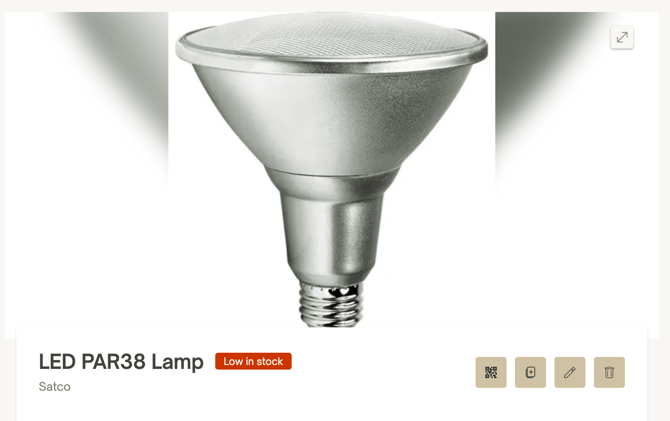
Stock status
Nines automatically assigns a stock status based on the asset's current quantity.
In Stock
The asset quantity is above the configured Low Stock Threshold.
Low in Stock
The asset quantity is at or below the Low Stock Threshold, but greater than zero.
The designated users will receive a notification according to their personal notification preferences:
- Mobile app push notification
- Text message (SMS)
Out of Stock
The asset quantity reaches 0.
The designated users will again receive a notification according to their notification preferences:
- Mobile app push notification
- Text message (SMS)
How notifications work
To prevent unnecessary alerts, each notification is only sent once for a given stock state.
- Low Stock notifications are sent only the first time an asset enters the Low in Stock status.
- Out of Stock notifications are sent only the first time an asset reaches Out of Stock.
A new notification will not be sent again until the asset first returns to a higher stock level.
For example:
| Quantity changes | Notification |
|---|---|
| 8 → 5 | Low Stock notification sent |
| 5 → 4 → 3 → 2 | No additional notifications |
| 2 → 0 | Out of Stock notification sent |
| 0 → 3 | No notification (status changes back to Low in Stock) |
| 3 → 8 | Returns to In Stock and notification state resets |
| 8 → 5 | Low Stock notification sent again |
Note: Notification delivery (mobile app push, email, and text message) follows each user's individual notification preferences. You can manage these at any time in your Notification Preferences.
Find assets by stock status
You can quickly identify inventory that needs attention by filtering or sorting your Assets list based on stock status.
Filter by stock status
- Navigate to Assets.
- Select Filter.
- Choose one or more stock statuses:
- In Stock
- Low in Stock
- Out of Stock
Sort by stock status
Select the Stock Status column heading to sort your assets by their current stock status, making it easy to group items that require attention.
Filtering and sorting can be combined to quickly identify inventory that needs replenishing or items that have run out completely.