![hdr_logo.png]](https://go.ninesliving.com/hs-fs/hubfs/j1640189779864/hdr_logo.png?height=40&name=hdr_logo.png)
Nines supports Single Sign-On (SSO) using OpenID Connect (OIDC). This allows your team to log in using your organization’s identity provider (IdP) such as Microsoft Entra ID (Azure AD), Okta, Google Workspace, OneLogin, or Ping instead of managing separate passwords.
Once SSO is enabled, users authenticate with their company credentials and securely access Nines.
Before You Start
To configure SSO you will need:
-
Standard membership tier incl SSO
- Account Owner role in Nines to access the Admin Console
-
Admin access to your Identity Provider (IdP)
-
Your organization’s email domain(s) (for example
company.com) -
Ability to create an OpenID Connect application in your IdP
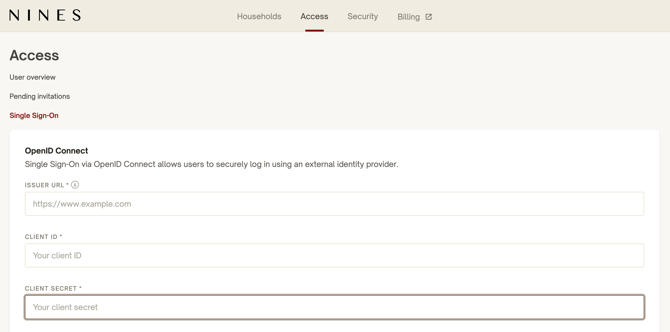
Step 1 — Open the SSO Settings in Nines
-
Log in to Nines as an Account Owner.
-
Go to: Admin Console → Access → Single Sign-On
-
You will see the SSO configuration screen with the following fields:
| Field | Description |
|---|---|
| Issuer URL | The base OpenID Connect issuer from your Identity Provider |
| Client ID | The client identifier created in your IdP |
| Client Secret | The secret generated by your IdP |
| Domains | Email domains allowed to authenticate |
| Allow Guest Invitations | Allows invited users outside your domain to sign in |
At the bottom of this page you will also see the Callback URL that must be configured in your Identity Provider.
https://api.my.ninesliving.com/auth/callback/oidc
Copy this URL — you will need it in the next step.
Step 2 — Create an OpenID Connect App in Your Identity Provider
In your Identity Provider, create a new OpenID Connect (OIDC) Web Application.
Common settings include:
| Setting | Value |
|---|---|
| Application Type | Web Application |
| Authentication Flow | Authorization Code |
| Redirect / Callback URL | Paste the Nines Callback URL |
| Scopes | openid, email, profile |
Once created, your IdP will generate:
-
Client ID
-
Client Secret
-
Issuer URL (or Discovery URL)
Step 3 — Enter the Credentials in Nines
Return to the SSO configuration page in Nines and enter:
Issuer URL
Example: https://login.microsoftonline.com/<tenant-id>/v2.0
Client ID
Provided by your Identity Provider.
Client Secret
Provided by your Identity Provider.
Domains
Enter the allowed login domains (for example): company.com
If you want to allow invited users from outside your organization, enable:
✔ Allow Guest Invitations
Click Configure to save.
Step 4 — Test the SSO Login
Before finalizing SSO:
- Test the set up via your own Test Login. The Account Owner who is logged in must do this using their own account. If the email address does not match, SSO cannot be activated.
-
Confirm that you can log in successfully, your email and name appear correctly, and permissions are correct.
- Nines does not automatically provision (register) new users when someone logs in via SSO. Every user who wants to log in via SSO must first have an account in Nines (through the standard invite flow).
- It is essential that email addresses from the IdP exactly match the email addresses in Nines. Any email aliases do not work. Also double check the casing.
- 2FA is automatically disabled when a user logs in via SSO.
Required User Attributes (Claims)
Nines expects the following information from your Identity Provider:
| Claim | Description |
|---|---|
| User’s primary email address | |
| name or given_name / family_name | User’s name |
Optional attributes such as groups or roles may be used to assign permissions.
Supported Identity Providers
Nines works with most major OpenID Connect providers, including:
-
Microsoft Entra ID (Azure AD)
-
Okta
-
Google Workspace
-
OneLogin
-
Ping Identity
-
Other OIDC-compatible providers
Security Best Practices
-
Test SSO with a small pilot group before enabling for everyone.
-
Keep at least one admin account outside SSO as a backup.
-
Enable Multi-Factor Authentication (MFA) in your Identity Provider.
-
Limit access using your corporate email domains.
Troubleshooting
Login fails after authentication
Check that the Callback URL in your IdP exactly matches the one shown in Nines.
User cannot sign in
Confirm the user's email domain is included in the Domains field.
Invalid Client or Issuer error
Verify the Client ID, Client Secret, and Issuer URL were copied correctly from your IdP.