![hdr_logo.png]](https://go.ninesliving.com/hs-fs/hubfs/j1640189779864/hdr_logo.png?height=40&name=hdr_logo.png)
The Dashboard is the default landing page for every user who logs into Nines. It provides a centralized view of your upcoming work, recent activity, conversations, and important information, helping you quickly understand what's happening across your properties.
The Dashboard includes the following sections:
- Tasks
- Events
- Information Board
- Logs
- Latest Comments
- Pinned
- Weather by Property (read more here)
You can customize which sections appear on your Dashboard and rearrange them to suit your preferences. You can also choose which Tasks and Events are displayed.
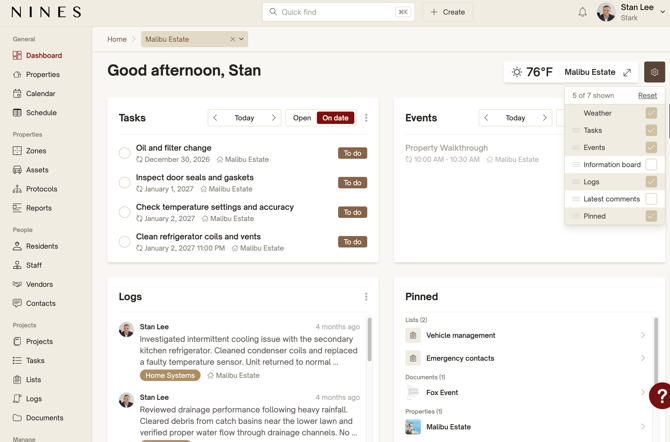
Customizing your Dashboard
Click the gear icon in the top-right corner of your Dashboard to customize your view.
You can:
- Show or hide sections: Choose which Dashboard sections you want to display.
- Rearrange sections: Change the order of sections to prioritize the information most relevant to you.
You can also customize which Tasks and Events appear directly within their respective sections.
Property filter
The Dashboard respects your selected property filter, located at the top of the page.
- If no properties are selected, the Dashboard displays information from all properties you have permission to view.
- If one or more properties are selected, only information associated with those properties is shown.
The property filter applies to all Dashboard sections, including Tasks, Events, Logs, Latest Comments, and Pinned.
Tasks
The Tasks section displays Tasks based on your selected view. You can switch between two options:
- On date: Displays Tasks that are active on the selected date. A Task appears when the selected date falls between its Start Date and Due Date, including both dates. Use the navigation arrows to move backward or forward one day at a time.
- Open: Displays all open Tasks, regardless of the selected date.
Tasks are sorted by Due Date, with the closest due date displayed first.
Completed Tasks are also included in the On date view if they are active on the selected date.
The Tasks section supports infinite scrolling, so you can continue scrolling to see more Tasks without navigating away from the Dashboard.
The Dashboard is not automatically limited to Tasks assigned to or followed by you. If you have permission to view a Task, it may appear regardless of whether you are assigned to it.
Use the three-dot menu in the Tasks section to add a Task or see all Tasks on the Tasks Overview page.
Events
The Events section displays Events based on your selected view. You can switch between two options:
- On date: Displays Events occurring on the selected date. Use the navigation arrows to move backward or forward one day at a time.
- Upcoming: Displays upcoming Events, rather than only those occurring on a specific date.
This includes:
- Single-day Events
- Multi-day Events
- All-day Events
Events are sorted by Start Time, with the earliest Event displayed first.
The Events section supports infinite scrolling, so you can continue scrolling to see more Events without navigating away from the Dashboard.
The Dashboard is not automatically limited to Events where you are an attendee or follower. If you have permission to view an Event, it may appear regardless of whether you are involved.
Use the three-dot menu in the Events section to add an Event or see all Events on the Events list page.
Information Board
The Information Board provides a convenient place to share updates with your team.
There are two boards available:
- Personal Board – Visible only to you.
- Team Board – Shared with other users who have access. This board can currently only be updated by users who have permission to manage Household Settings as part of their role (including Admin by default).
Use the rich text editor to format announcements, reminders, links, and other important information.
Note: You can mention other users using @mentions within the Information Board.
Logs
The Logs section displays the five most recently created Logs.
Unlike Tasks and Events, Logs are not affected by the selected date. The Dashboard always shows the newest Log entries first.
Select View all to open the complete Logs page.
Latest Comments
The Latest Comments section provides a centralized view of recent conversations across your Nines account.
This makes it easier to stay up to date on discussions and quickly find recent Comments without having to navigate to individual items.
Comments respect your selected property filter and user permissions.
Pinned
The Pinned section brings together information you've pinned across your Nines account, making it easy to access frequently referenced or important items directly from your Dashboard.
Pins are personal to each user. They are no longer shared across the account.
- Only you can see and manage your pins.
- Pinning or unpinning an item does not affect other users.
- This applies to both existing and newly created pins.
For example, if you remove a previously shared pin, it will only be removed from your personal view and will not affect anyone else's pins.
Pinned information also respects your selected property filter.
Weather by Property
The Weather section provides weather information for your properties, helping you plan upcoming activities and property-related work.
Read more about Weather by Property here.
Permissions
All Dashboard content respects your Nines permissions. Users only see information they are authorized to access based on their permission role and assigned properties.
Customizing your Dashboard changes how information is displayed, but does not change your underlying permissions.